How to Make a Backing Track From Any Song (for Practice and Live Shows)
Mute your part and let the band play around you. Here’s how to build a backing track from any recording, for practice at home or for the stage.

Playing along with a backing track is the closest thing to rehearsing with a real band, any time you want. It’s also how solo artists and duos fill out their sound on stage. The best backing track is the original recording without your part, and today you can make one from almost any song.
Three kinds of backing tracks
| Type | What’s removed | Who it’s for |
|---|---|---|
| Play-along (minus one) | Your instrument | Guitarists, bassists, drummers, pianists |
| Karaoke / instrumental | The vocals | Singers, cover artists |
| Live tracks | Everything the band plays live | Bands and solo performers on stage |
Step 1: Separate the song into stems
Upload the song to a stem splitter. Omnes separates it into six stems: vocals, guitar, bass, drums, piano and other. Now you can build any combination. If you only need the instrumental, the vocal remover does it in one step.
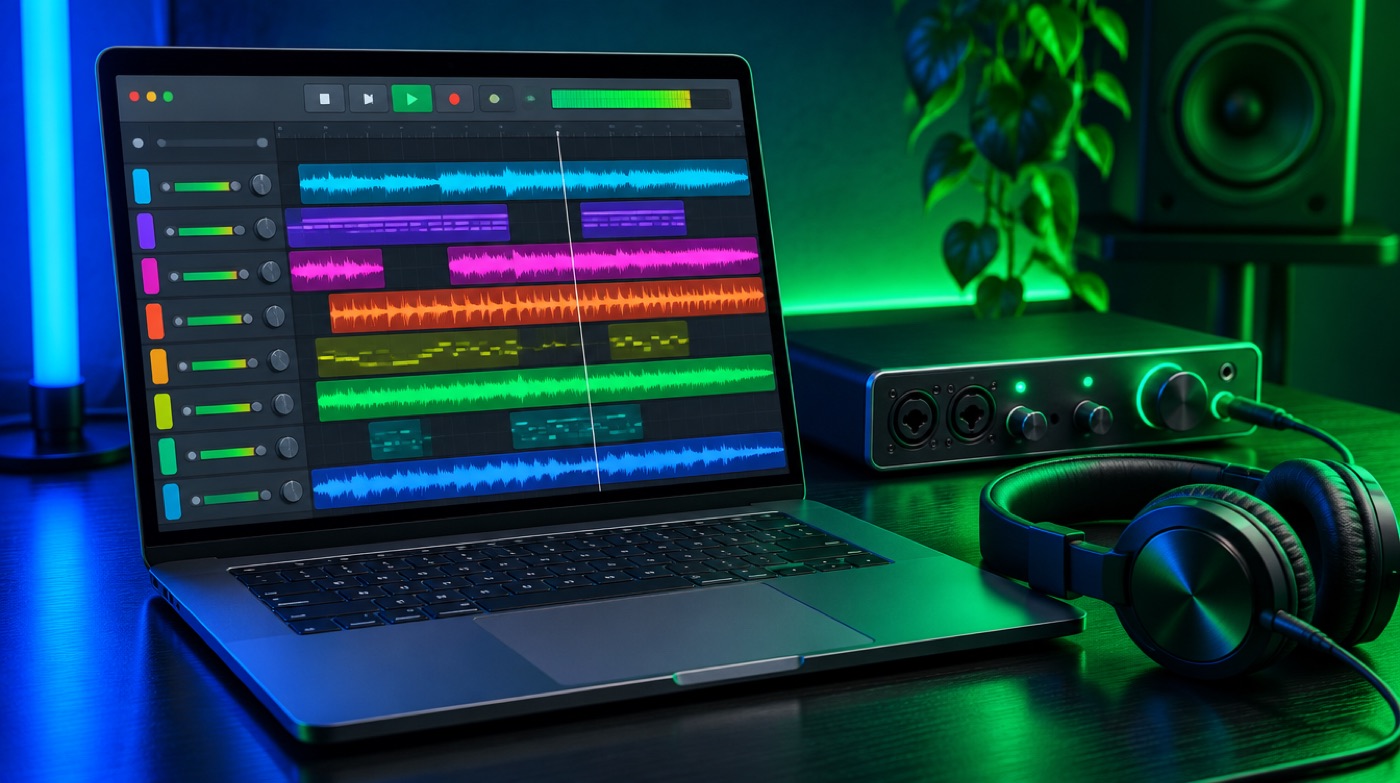
Step 2: Mute (or lower) your part
Mute your instrument and keep everything else. For practice, many players prefer to lower their part instead of muting it completely: you still hear a guide, and you can fade it out as you get confident.
Step 3: Adjust the key and tempo
- Different key? Shift the track with the music transposer to fit your voice or tuning. A song in half-step-down tuning becomes playable in standard by moving it up one semitone.
- Too fast? Slow it down without changing the pitch with a speed changer, then build back up.
Step 4: Add a click
For live shows, a click keeps the band (or just you) locked to the track, especially in intros and breaks where there’s nothing to follow. A BPM detector creates a click track synced to the recording, beat by beat, which you can download and send only to your in-ear monitors.
Step 5: Export and organize
Download the stems you need (MP3, or a ZIP with all of them) and import them into your DAW or live playback app. A typical live setup:
- Track 1: click (in-ears only)
- Track 2: cues or count-ins (in-ears only, optional)
- Track 3+: the backing stems (to the front-of-house mix)
Keep a consistent volume level across songs so you don’t have to adjust the mix between every number.
Getting the most from play-along practice
- Learn the part first, slowly, before playing with the full band.
- Start at 80–90% speed and work up to the original tempo.
- Record yourself playing over the track. Listen for timing and balance.
- Play the whole song, not just the fun parts. Endurance and transitions are part of performing.
Need the notes for your part? Get them from the same recording with the guitar tab generator, bass tab generator or drum transcription.
A note on rights
Making backing tracks for your own practice is fine. Using someone else’s recording in public performances or published videos can require permission or licensing, depending on where you play and publish. When in doubt, check with the venue or platform.
Three common setups
The solo guitarist
Mute the guitar stem and keep vocals, bass, drums and keys. Play the guitar part live over the record. Great for practice and for open-mic nights where you want a full sound.
The acoustic duo
Keep only bass, drums and “other” (strings, synths). The duo plays guitar and sings live, and the backing fills out the low end and rhythm.
The band missing a member
Your keyboard player can’t make the gig? Keep only the piano and “other” stems, add a click, and play the rest live.
Common mistakes
- Backing too loud. The live players should be the focus. Keep the track a little lower than you think.
- No click in the ears. Without it, intros and breakdowns are where bands drift off the track.
- Different levels between songs. Normalize your tracks so the mix doesn’t jump from song to song.
- Not rehearsing with the track. Practice with the exact backing you’ll use on stage, not the original song.
The short version
Split the song into stems, mute your part, adjust the key and tempo, add a synced click, and export. In a few minutes you’ll have a backing track that sounds like the record, because it is the record.
Frequently asked questions
How do I make a backing track from a song?
Separate the song into stems with a stem splitter, mute your instrument (or the vocals), adjust key and tempo if needed, and download the result.
Can I remove just the guitar from a song?
Yes. Omnes splits songs into vocals, guitar, bass, drums, piano and other, so you can mute only the guitar.
How do I add a click track to a backing track?
Use a BPM detector that creates a click synced to the recording, then play it in your in-ear monitors alongside the backing stems.
Can I change the key of a backing track?
Yes, with a music transposer that changes the key without changing the tempo.